
Jump to page sections
- A Few Simple Examples
- A Simple PowerShell Function For Checking Last Boot Up Time Using WMI
- Getting both reboot time and "uptime"
- Alternate Way In Retrospect
- Multiple Target Computers
- Get Data In XML Format
- Create A CSV Report Of Retrieved Boot Times
I added the obvious, basic examples below, and an example function, for those with simpler needs.
I researched the topic a little before writing this article, and I saw various more or less sane ways of determining the last boot-up time, but what I'll be demonstrating here is with WMI, CIM and PSRemoting from PowerShell, which I think should be good approaches. I threw in some more obscure corner cases as well.See this article for how to get computer names from an OU in AD - or the entire AD.
A Few Simple Examples
PS C:\> $LastBootUpTime = Get-WmiObject Win32_OperatingSystem -Comp winxpssd | Select -Exp LastBootUpTime PS C:\> [System.Management.ManagementDateTimeConverter]::ToDateTime($LastBootUpTime)Wednesday, June 13, 2012 3:10:45 AM
And we see that the XP workstation was last booted on Wednesday, June 13th, 2012.
Remember that you can add "-ComputerName server1, server2, server3" to gwmi/Get-WmiObject in all these examples.You can also do it like this, since the WMI object will have a ConvertToDateTime method:
PS C:\> $wmi = gwmi win32_operatingsystem PS C:\> $wmi.ConvertToDateTime($wmi.LastBootUpTime)Friday, August 22, 2014 4:39:23 AM
PS C:\>
Or this cute one-liner approach:
PS C:\> gwmi win32_operatingsystem | %{ $_.ConvertToDateTime($_.LastBootUpTime) }

Thursday, October 22, 2015 11:16:37
Or why not even a "dummy" WMI object:
PS C:\> ([wmi]'').ConvertToDateTime((gwmi win32_operatingsystem).LastBootUpTime)

Wednesday, January 13, 2016 12:56:51
WMI via PowerShell remoting:
PS C:\temp> $res3 = Invoke-Command -Cn vista64esxi, 2008r2esxi `
  -Command { (gwmi win32_operatingsystem).lastbootuptime }

PS C:\temp> $res3 | foreach { ([wmi]'').ConvertToDateTime($_) }

Thursday, February 11, 2016 3:13:19 AM
Wednesday, February 10, 2016 6:41:00 AM
With PSv3 (Windows Management Framwork 3.0) and up, you can also use the Get-CimInstance, Get-CimClass and Get-CimSession cmdlets. Here's a basic example with Get-CimInstance, that works almost equivalently to Get-WmiObject. Get-Cim* cmdlets use WSMAN, meaning they should work without WMI access, so long as PSRemoting is set up. Notice how the dates are nicely formatted for you without any effort (progress, yay).
PS C:\> $BootTimes = Get-CimInstance -Cn server2012, win2012r2 -Class Win32_OperatingSystem |
    Select PSComputerName, LastBootUpTime

PS C:\> $BootTimes | Format-Table -AutoSize

PSComputerName LastBootUpTime
-------------- --------------
server2012     6/15/2016 5:46:32 PM
win2012r2      6/18/2016 10:52:53 PM
What if you don't have WMI access, but PsExec works? Invoke-PsExec to the rescue!
PS C:\temp> . C:\Dropbox\PowerShell\Invoke-PsExec\Invoke-PsExec.ps1 PS C:\temp> $cred = Get-Credential cmdlet Get-Credential at command pipeline position 1 Supply values for the following parameters: PS C:\temp> $res = Invoke-PsExec -Cn vista64esxi, 2008r2esxi2 -HideSummary ` -Command '(gwmi win32_operatingsystem).lastbootuptime' -IsPSCommand ` -Credential $credOh, wait, the remote computer doesn't even ''have'' PowerShell '''and''' WMI doesn't work?! Unless you can Invoke-PsExec up, you might be out of luck. If PsExec does work, you could roll something like the following, where you use wmic.exe remotely, and parse the results using PowerShell locally.PS C:\temp> $res | ft -AutoSize ComputerName, @{n='LastBootUpTime'; e={([wmi]'').ConvertToDateTime($_.STDOUT)}}
ComputerName LastBootUpTime ------------ -------------- 2008r2esxi2 2016-02-13 19:06:26 vista64esxi 2016-02-10 06:41:00
PS C:\temp> $res2 = Invoke-PsExec -Cn vista64esxi, 2008r2esxi2 -HideSummary `
  -Command 'wmic os get lastbootuptime /format:list' -Credential $cred

PS C:\temp> $res2 | ft -AutoSize ComputerName, @{n='LastBootUpTime'; `
  e={ ($_.STDOUT | ?{$_} | %{ ([wmi]'').ConvertToDateTime($_.Split('=')[1].Trim()) } ) } }

ComputerName LastBootUpTime
------------ --------------
2008r2esxi2  2016-02-13 19:06:26
vista64esxi  2016-02-10 06:41:00
A Simple PowerShell Function For Checking Last Boot Up Time Using WMI
The -ComputerName parameter for Get-WmiObject accepts an array of strings, but if one of them has an error, I haven't found a way of connecting the results with the computer names it succeeded for (NB! Also see "alternate method in retrospect" below, but you need PSv3 for that). I think I'm missing something here, but considering this, a very basic, generic function for this that you could put in your profile, or dot-source when needed, might look something like this:
<#
.SYNOPSIS
    Get the last boot up time of a remote Windows computer via WMI.

.PARAMETER ComputerName
    Target host or hosts to retrieve the last boot up time for.
#>

function Get-LastBootUpTime {
    param([Parameter(Mandatory=$true)][string[]] $ComputerName)
    foreach ($Computer in $ComputerName) {
        New-Object psobject -Property @{
            ComputerName = $Computer
            LastBootUpTime = [Management.ManagementDateTimeConverter]::ToDateTime( (Get-WmiObject -Class Win32_OperatingSystem -Computer $Computer | Select -Exp LastBootUpTime) )
        }
    }
}
To use it, you'd do something like this, where you first dot-source the script to get the function in the current scope, and then use the function:
PS C:\temp> . .\PowerShell\Get-LastBootUpTime.ps1
PS C:\temp> Get-LastBootUpTime -ComputerName 2008r2esxi, winxpssd, win2k | ft -a

ComputerName LastBootUpTime
------------ --------------
2008r2esxi   8/29/2014 3:16:43 AM
winxpssd     7/15/2014 2:30:16 PM
win2k        6/9/2014 3:47:13 PM
Getting both reboot time and "uptime"
<#
.SYNOPSIS
    Get the last boot up time of a remote Windows computer via WMI.

.PARAMETER ComputerName
    Target host or hosts to retrieve the last boot up time for.
#>
function Get-LastBootUpTime {
    param(
        [Parameter(Mandatory=$true)][Alias('Cn')][string[]] $ComputerName,
        [System.Management.Automation.PSCredential] $Credential = [System.Management.Automation.PSCredential]::Empty)
    foreach ($Computer in $ComputerName) {
        $WmiHash = @{
            ComputerName = $Computer
            ErrorAction = 'Stop'
            Class = 'Win32_OperatingSystem'
        }
        if ($Credential.Username -match '\S') {
            $WmiHash.Credential = $Credential
        }
        try {
            if ($LastBootUpTime = Get-WmiObject @WmiHash | Select -ExpandProperty LastBootUpTime -ErrorAction SilentlyContinue) {
                $LastBootUpTime = [Management.ManagementDateTimeConverter]::ToDateTime($LastBootUpTime)
                New-Object PSObject -Property @{
                    ComputerName = $Computer
                    LastBootUpTime = $LastBootUpTime
                    UpTime = [datetime]::Now - $LastBootUpTime
                }
            }
            else {
                Write-Warning -Message "Failed to retrieve last boot up time for $Computer (unknown failure)."
            }
        }
        catch {
            Write-Warning -Message "Failed to execute WMI query against ${Computer}: $($_.Exception.Message)"
        }
    }
}
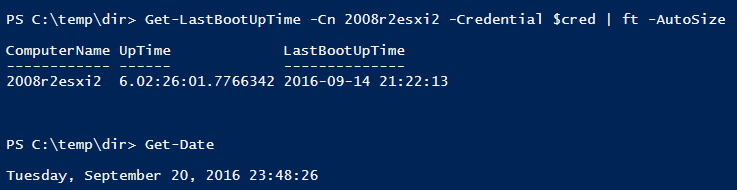
And here's an example run:
Alternate Way In Retrospect
PS C:\> gwmi win32_operatingsystem -comp vista64esxi, esxi, 2008r2esxi2, 2008r2esxi -Credential $Cred |
    select PSComputerName, @{n='BootTime';e={$_.ConvertToDateTime($_.LastBootupTime)}}

PSComputerName                                                   BootTime
--------------                                                   --------
VISTA64ESXI                                                      2015-10-15 06:30:13

gwmi : The RPC server is unavailable. (Exception from HRESULT: 0x800706BA)
At line:1 char:1
+ gwmi win32_operatingsystem -comp vista64esxi, esxi, 2008r2esxi2, 2008r2esxi -Cre ...
+ ~~~~~~~~~~~~~~~~~~~~~~~~~~~~~~~~~~~~~~~~~~~~~~~~~~~~~~~~~~~~~~~~~~~~~~~~~~~~~~~~
    + CategoryInfo          : InvalidOperation: (:) [Get-WmiObject], COMException
    + FullyQualifiedErrorId : GetWMICOMException,Microsoft.PowerShell.Commands.GetWmiObjectCommand

2008R2ESXI2                                                      2015-10-17 23:30:40
2008R2ESXI                                                       2015-10-15 03:07:57
In PSv3 and up, you can use "-ErrorVariable SomeVarName", and you can then look at the "TargetObject" property from those objects to see which ones failed. There's a TargetObject property in the error object in v2 as well, but it's empty when I test...
You can also use "-ErrorAction SilentlyContinue" on gwmi/Get-WmiObject to suppress errors.Multiple Target Computers
Now to the slightly more interesting part where I demonstrate how to process a bunch of remote computers and create a simple report of when they were last booted. I promote my own Get-WmiObject-Wrapper script, which is really quite ideal for this purpose. It is written as both a serial version, and an asynchronous version using PowerShell runspaces. The asynchronous version in my experience processes thousands of servers in a few minutes, and the majority of the time is actually spent writing the resulting XML file afterwards, due to a lot of (exponentially slower) string concatenation.
You can download the script from the above link. The documentation there is fairly extensive, but if you follow this guide you should be good to go without too much hassle. *Download the files at the link above and put them in your working directory.*Retrieve target computer names from AD, if necessary, and put them in a text file or a variable holding an array of target computer names. If you have a text file of target computers, use the parameter "-ComputerName (gc .\hosts.txt)".
*Retrieve the desired data using the WMI wrapper script against target hosts.
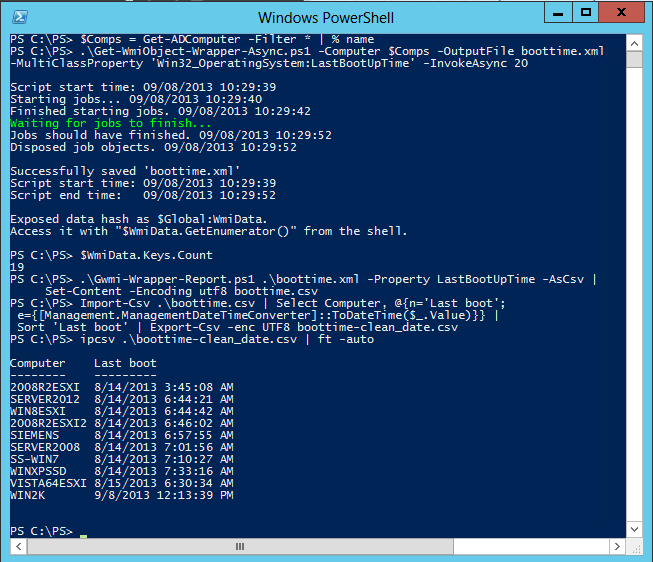
Here's a complete example in a screenshot (PowerShell version 3 is required for the first line's syntax to work):
Get Data In XML Format
PS C:\PS> Import-Module ActiveDirectory
PS C:\PS> $Comps = Get-ADComputer -filter '*' | Select -Exp Name
PS C:\PS> $Comps.Count
19

PS C:\PS> .\Get-WmiObject-Wrapper-Async.ps1 -Computer $Comps -OutputFile boottime.xml
         -MultiClassProperty 'Win32_OperatingSystem:LastBootUpTime' -InvokeAsync 20

Script start time: 09/08/2013 10:29:39
Starting jobs... 09/08/2013 10:29:40
Finished starting jobs. 09/08/2013 10:29:42
Waiting for jobs to finish...
Jobs should have finished. 09/08/2013 10:29:52
Disposed job objects. 09/08/2013 10:29:52

Successfully saved 'boottime.xml'
Script start time: 09/08/2013 10:29:39
Script end time:   09/08/2013 10:29:52

Exposed data hash as $Global:WmiData.
Access it with "$WmiData.GetEnumerator()" from the shell.

PS C:\PS> $WmiData.Keys.Count
19
Now we have boottime.xml which contains the collected data, error messages and "no ping reply" messages.
Create A CSV Report Of Retrieved Boot Times
This creates a CSV report of the target computers from which we were successfully able to retrieve the last boot-up time. If you use the property "NoPing", you get computers that did not respond to ping - and if you use "Error", you get computers that had WMI errors.
PS C:\PS> .\Gwmi-Wrapper-Report.ps1 .\boottime.xml -Property LastBootUpTime -AsCsv |
         Set-Content -Encoding utf8 boottime.csv
You can then process it with Import-Csv and manipulate it in the usual ways. Here I convert the unfriendly date string to a regular [DateTime] object, sort it by this date/time and export it to a new CSV file with "clean dates", and then have a look at it with Import-Csv (ipcsv).
PS C:\PS> Import-Csv .\boottime.csv | Select ComputerName, @{n='LastBoot';
    e={[Management.ManagementDateTimeConverter]::ToDateTime($_.Value)}} |
    Sort 'LastBoot' | Export-Csv -enc UTF8 boottime-clean_date.csv

PS C:\PS> ipcsv .\boottime-clean_date.csv | ft -auto

Computer    Last boot
--------    ---------
2008R2ESXI  8/14/2013 3:45:08 AM
SERVER2012  8/14/2013 6:44:21 AM
WIN8ESXI    8/14/2013 6:44:42 AM
2008R2ESXI2 8/14/2013 6:46:02 AM
SIEMENS     8/14/2013 6:57:55 AM
SERVER2008  8/14/2013 7:01:56 AM
SS-WIN7     8/14/2013 7:10:27 AM
WINXPSSD    8/14/2013 7:33:16 AM
VISTA64ESXI 8/15/2013 6:30:34 AM
WIN2K       9/8/2013 12:13:39 PM
Windows
Powershell
WMI
CIM
Blog articles in alphabetical order
A
- A Look at the KLP AksjeNorden Index Mutual Fund
- A primitive hex version of the seq gnu utility, written in perl
- Accessing the Bing Search API v5 using PowerShell
- Accessing the Google Custom Search API using PowerShell
- Active directory password expiration notification
- Aksje-, fonds- og ETF-utbytterapportgenerator for Nordnet-transaksjonslogg
- Ascii art characters powershell script
- Automatically delete old IIS logs with PowerShell
C
- Calculate and enumerate subnets with PSipcalc
- Calculate the trend for financial products based on close rates
- Check for open TCP ports using PowerShell
- Check if an AD user exists with Get-ADUser
- Check when servers were last patched with Windows Update via COM or WSUS
- Compiling or packaging an executable from perl code on windows
- Convert between Windows and Unix epoch with Python and Perl
- Convert file encoding using linux and iconv
- Convert from most encodings to utf8 with powershell
- ConvertTo-Json for PowerShell version 2
- Create cryptographically secure and pseudorandom data with PowerShell
- Crypto is here - and it is not going away
- Crypto logo analysis ftw
D
G
- Get rid of Psychology in the Stock Markets
- Get Folder Size with PowerShell, Blazingly Fast
- Get Linux disk space report in PowerShell
- Get-Weather cmdlet for PowerShell, using the OpenWeatherMap API
- Get-wmiobject wrapper
- Getting computer information using powershell
- Getting computer models in a domain using Powershell
- Getting computer names from AD using Powershell
- Getting usernames from active directory with powershell
- Gnu seq on steroids with hex support and descending ranges
- Gullpriser hos Gullbanken mot spotprisen til gull
H
- Have PowerShell trigger an action when CPU or memory usage reaches certain values
- Historical view of the SnP 500 Index since 1927, when corona is rampant in mid-March 2020
- How Many Bitcoins (BTC) Are Lost
- How many people own 1 full BTC
- How to check perl module version
- How to list all AD computer object properties
- Hva det innebærer at særkravet for lån til sekundærbolig bortfaller
I
L
M
P
- Parse openssl certificate date output into .NET DateTime objects
- Parse PsLoggedOn.exe Output with PowerShell
- Parse schtasks.exe Output with PowerShell
- Perl on windows
- Port scan subnets with PSnmap for PowerShell
- PowerShell Relative Strength Index (RSI) Calculator
- PowerShell .NET regex to validate IPv6 address (RFC-compliant)
- PowerShell benchmarking module built around Measure-Command
- Powershell change the wmi timeout value
- PowerShell check if file exists
- Powershell check if folder exists
- PowerShell Cmdlet for Splitting an Array
- PowerShell Executables File System Locations
- PowerShell foreach loops and ForEach-Object
- PowerShell Get-MountPointData Cmdlet
- PowerShell Java Auto-Update Script
- Powershell multi-line comments
- Powershell prompt for password convert securestring to plain text
- Powershell psexec wrapper
- PowerShell regex to accurately match IPv4 address (0-255 only)
- Powershell regular expressions
- Powershell split operator
- Powershell vs perl at text processing
- PS2CMD - embed PowerShell code in a batch file
R
- Recursively Remove Empty Folders, using PowerShell
- Remote control mom via PowerShell and TeamViewer
- Remove empty elements from an array in PowerShell
- Remove first or last n characters from a string in PowerShell
- Rename unix utility - windows port
- Renaming files using PowerShell
- Running perl one-liners and scripts from powershell
S
- Sammenlign gullpriser og sølvpriser hos norske forhandlere av edelmetall
- Self-contained batch file with perl code
- Silver - The Underrated Investment
- Simple Morningstar Fund Report Script
- Sølv - den undervurderte investeringen
- Sort a list of computers by domain first and then name, using PowerShell
- Sort strings with numbers more humanely in PowerShell
- Sorting in ascending and descending order simultaneously in PowerShell
- Spar en slant med en optimalisert kredittkortportefølje
- Spre finansiell risiko på en skattesmart måte med flere Aksjesparekontoer
- SSH from PowerShell using the SSH.NET library
- SSH-Sessions Add-on with SCP SFTP Support
- Static Mutual Fund Portfolio the Last 2 Years Up 43 Percent
- STOXR - Currency Conversion Software - Open Exchange Rates API