
This has been tested with PowerShell versions 2, 3 and 4.
If you want to retrieve and process data from a large number of computers using WMI - this is probably what you're looking for - unless your needs are very simple. The asynchronous version uses the very efficient runspaces in PowerShell. My test case against about 2000 computers (where 1300 were offline and 40 had errors) went from about 45 minutes with completely sequential processing to about 5 minutes with 50 jobs and 10 minutes with 10 jobs.In hindsight: It is probably best to make the job/runspace count you specify with -InvokeAsync divisible by 2. The default is 32. They usually have a very low memory footprint.
There is some information about runspaces here and here - and other places on the web. Note on 2021-12-22: I wrote an article about runspaces in PowerShell and put it here. This article was originally written around 2013-2014 if memory serves us a decent estimate.You can expect the script to process somewhere between 100-500 servers/workstations per minute with the default of 32 threads. There might be considerable CPU usage when starting and processing many threads.
These scripts will also allow you to perform complex operations on collected data afterwards. The collected data is stored in a hash that's exposed globally to the calling shell / host environment as $WmiData and can be processed in normal ways, but normally using Gwmi-Wrapper-Report is easier.It's much faster to process objects in memory than creating them from the XML file each time, so in those cases you might want to do:
$WmiObjects = .\Gwmi-Wrapper-Report.ps1 xmlfile.xml
... and then later process it with something like:
$WmiObjects | Where { $_.Property -eq 'foo' }
... or do the necessary processing with Gwmi-Wrapper-Report's parameters (see table).
The scripts support multiple returned WMI property values, an important feature that was lacking in earlier versions. Now you also deal with objects mostly, instead of text, unless you want to deal with text, in which case you have the -AsCsv parameter to the report script. There's a caveat with the -CombineComputerName parameter, which is that it in PowerShell version 2 only works in combination with the -AsCsv switch. In PS v2 you can't return objects directly, you need to use -AsCsv, pipe to Set-Content, and then use Import-Csv. Everything works fine in v3 and v4, and presumably later versions of PowerShell.I decided to store the retrieved data using XML since PowerShell v2 has decent support for it, as do many other tools.
A little taste of the version before the third major rewrite:
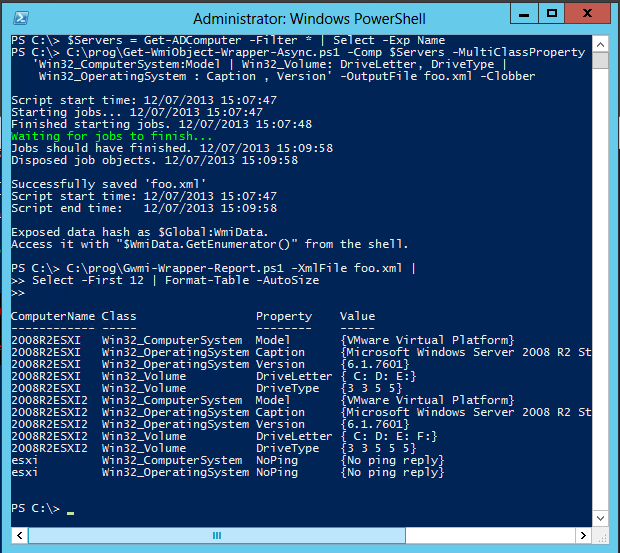
You specify WMI classes and the properties you want from each class with a special string in this format:
"wmi_class1: prop1,prop2 | wmi_class2:prop1 | wmi_class3: prop1, prop2 , prop3"Rules: *First you specify the class, followed by a colon, then a property or properties separated by commas. *Multiple class/property groups are separated by pipes. *You can have whitespace around pipes and colons - and between commas - for increased readability.
An example string in this format is:
"Win32_OperatingSystem:Version | Win32_ComputerSystem:TotalPhysicalMemory, Model"
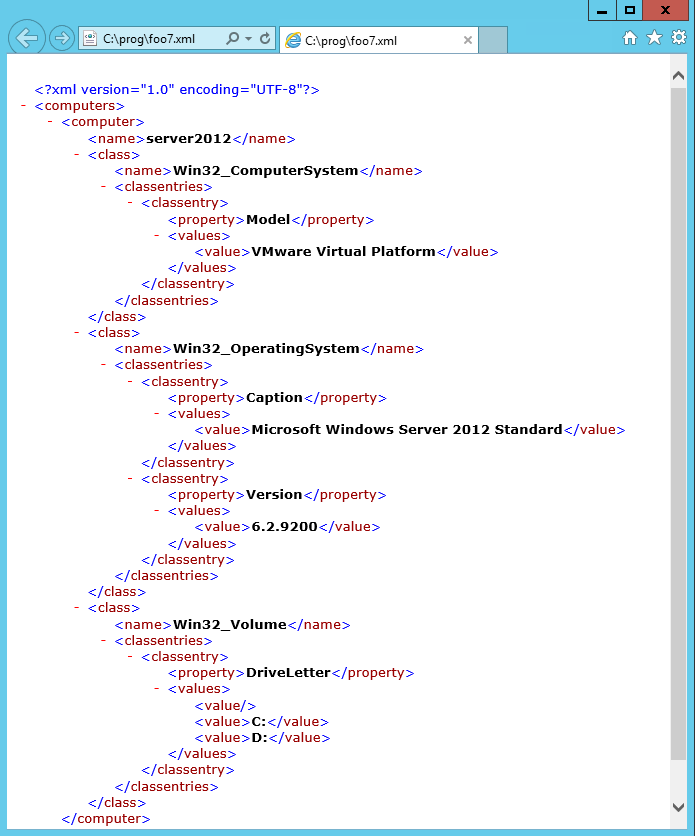
The resulting XML looks like this, and you can now use the exposed $WmiData object to look at the data. However, the report generator, Gwmi-Wrapper-Report.ps1, is probably best suited to extract data from the XML file in the form of custom PowerShell objects, or produce CSV reports, or otherwise parse/process the data. There are also features in Gwmi-Wrapper-Report that make creating CSV data extra easy.
Here is an example of resulting XML data:
''2013-04-23: Uploaded an -Async version. It has an -InvokeAsync parameter that takes an integer specifying the number of concurrent "jobs". I set the default to 5 (2014-12-21: changed to 32). It uses runspaces in a runspace pool which comes with some possible flaws, but it has been working during testing. I have tested it quite a bit on virtual servers myself; one with two cores against about 2000 target computers, and it didn't explode. Also against 16,000 computers on another network. The powershell.exe process used about 125 MB of RAM in the former case (collecting five properties from two classes).
| -ComputerName | Required. Array of strings with computer names. |
| -OutputFile | Required. Output file. You will be prompted to overwrite it unless you specify "-Clobber". |
| -MultiClassProperty | Required. You specify WMI classes and the properties you want from each class with a special string in this format: wmi_class1:prop1,prop2 | wmi_class2:prop1 | wmi_class3:prop1,prop2,prop3. |
| -Timeout | Optional. A time span object. The default is "0:0:10", which is 10 seconds. |
| -NoPingTest | Optional. Specify this if you do NOT want to skip computers that do not respond to ICMP echo (ping). |
| -Clobber | Optional. Overwrite the specified output file without prompting if it already exists. |
| -Scope | Optional. The WMI management scope. Usually not necessary. By default "\\${Computer}\root\cimv2" will be used, while this lets you replace the part "root\cimv2" with what you specify instead. |
| -CustomWql | The default WQL query is "SELECT prop1, prop2 FROM Win32_ClassHere", while this parameter lets you append something like: WHERE DriveType="3". This "custom WQL" will be used in all the queries, so if the property/condition doesn't apply to other classes, you will see errors. |
| -InvokeAsync | Sets the number of concurrent jobs. Default: 32. |
| -Credential | Specify alternate credentials using a PSCredentials object (Get-Help Get-Credential). |
| -Domain | Specify the target computers' domain for use with alternate credentials specified with -Credential. Both short and long forms should work. If you specify a domain in the credential object passed to -Credential, you can skip specifying it again with this parameter (omit it), since I built in a check for it. |
With Gwmi-Wrapper-Report.ps1 you can easily parse the XML file and filter on (multiple) computer names, classes or properties. The parameters you specify for the filtering options: -ComputerName, -Class, and -Property are really regular expressions (where a complete match is needed, so pad with the "regex wildcard" .* if necessary). You might want to read more about text processing with regular expressions here, but it's really not necessary in order to use the report generator.
The parameters are:
| -XmlFile | Required. The XML file to parse. |
| -ComputerName | Optional. Default "all". Specify computer or computers to filter on. Only computer names matching those you specify here will be displayed. Really an array of regular expressions (where a complete match is needed). |
| -Class | Optional. Default "all". Specify WMI class or classes to filter on. Only classes matching those names you specify here will be displayed. Really an array of regular expressions (where a complete match is needed). |
| -Property | Optional. Default "all". Specify property or properties to filter on. Only properties matching those names you specify here will be displayed. Really an array of regular expressions (where a complete match is needed). |
| -ComputerNameNotMatch | Optional. Specify computer or computers to filter out. Computer names matching those you specify here will not be displayed. Really an array of regular expressions (where a complete match is needed). |
| -ClassNotMatch | Optional. Specify WMI class or classes to filter out. Classes matching those names you specify here will not be displayed. Really an array of regular expressions (where a complete match is needed). |
| -PropertyNotMatch | Optional. Specify property or properties to filter out. Properties matching those names you specify here will not be displayed. Really an array of regular expressions (where a complete match is needed). You often want to pass "Error, NoPing" to this parameter when using -CombineComputerName, so the headers come out correctly on-screen (fixed in PSv4! It'll show all columns aggregated, not just those of the first object). |
| -CombineComputerName | Optional. Combine all entries for a computer name on one line. Each class and property will be combined as the new property name, with "Win32_" at the start of the class name omitted to save screen space. Requires PowerShell version 3 or higher, unless you use -AsCsv, which works with v2 as well. |
| -AsCsv | Optional. Get output as CSV strings rather than custom PowerShell objects. Pipe to Set-Content. |
| -CsvDelimiter | Optional. Only in use with -AsCsv. Specify a custom CSV delimiter string. The default is a comma. |
| -ValueDelimiter | Optional. Only in use with -AsCsv or -CombineComputerName. A custom multi-value join string. Default is a semicolon. |
| -NoHeaders | Optional. Only in use with -AsCsv. Do not print the default headers "Computer, Class, Property, Value". |
> .\Gwmi-Wrapper-Report.ps1 -XmlFile .\wmi.xml
Example output:
PS C:\prog> .\Gwmi-Wrapper-Report.ps1 -XmlFile foo4.xml | ft -a

ComputerName   Class                 Property Value
------------   -----                 -------- -----
2008r2esxi     win32_computersystem  model    {VMware Virtual Platform}
server2012     win32_computersystem  model    {VMware Virtual Platform}
PS C:\prog> .\Gwmi-Wrapper-Report.ps1 -Xml foo.xml -Computer server2008 | ft -a

ComputerName     Class                  Property    Value
------------     -----                  --------    -----
{SERVER2008}     Win32_ComputerSystem   Model       {VMware Virtual Platform}
{SERVER2008}     Win32_OperatingSystem  Caption     {Microsoft® Windows Server® 2008 Standard }
{SERVER2008}     Win32_OperatingSystem  Version     {6.0.6002}
{SERVER2008}     Win32_Volume           DriveLetter {C: D:}
Since the filtering parameters take regular expressions (that require complete matches; pad with '''.*'''), you can also use something like this to get all the computers that start with "win8":
PS C:\prog> .\Gwmi-Wrapper-Report.ps1 -Xml foo.xml -Computer 'win8.*' | ft -a

ComputerName   Class                  Property    Value
------------   -----                  --------    -----
{WIN8ESXI}     Win32_ComputerSystem   Model       {VMware Virtual Platform}
{WIN8ESXI}     Win32_OperatingSystem  Caption     {Microsoft Windows 8 Pro}
{WIN8ESXI}     Win32_OperatingSystem  Version     {6.2.9200}
{WIN8ESXI}     Win32_Volume           DriveLetter {- C: D:}
{WIN8VM}       Win32_ComputerSystem   NoPing      {No ping reply}
{WIN8VM}       Win32_OperatingSystem  NoPing      {No ping reply}
{WIN8VM}       Win32_Volume           NoPing      {No ping reply}
Or as CSV strings ready to be piped to Set-Content and then later processed with Import-Csv:
PS C:\prog> .\Gwmi-Wrapper-Report.ps1 -Xml foo.xml -Computer server2008 -AsCsv
"ComputerName","Class","Property","Value"
"SERVER2008","Win32_ComputerSystem","Model","VMware Virtual Platform"
"SERVER2008","Win32_OperatingSystem ","Caption","Microsoft® Windows Server® 2008 Standard "
"SERVER2008","Win32_OperatingSystem ","Version","6.0.6002"
"SERVER2008","Win32_Volume","DriveLetter","C:;D:"
PS C:\prog> .\Gwmi-Wrapper-Report.ps1 -Xml foo.xml -Property Caption |
>> select Computer, Value | Format-Table -AutoSize
>>

ComputerName    Value
------------    -----
{2008R2ESXI}    {Microsoft Windows Server 2008 R2 Standard }
{2008R2ESXI2}   {Microsoft Windows Server 2008 R2 Standard }
{SERVER2008}    {Microsoft® Windows Server® 2008 Standard }
{SERVER2012}    {Microsoft Windows Server 2012 Standard}
{SIEMENS}       {Microsoft Windows XP Professional}
{SS-WIN7}       {Microsoft Windows 7 Professional }
{VMWAREWIN7}    {Microsoft Windows 7 Professional }
{WIN8ESXI}      {Microsoft Windows 8 Pro}
{WINXPSSD}      {Microsoft Windows XP Professional}
A side-effect here is that the computers with errors and no ping reply are filtered out, because the properties are named "Error" and "NoPing". There's only one Error or NoPing entry per class. To list errors, use:
> .\Gwmi-Wrapper-Report.ps1 -XmlFile .\wmi.xml -Property error
To list computers that did not respond to ping, use:
> .\Gwmi-Wrapper-Report.ps1 -XmlFile .\wmi.xml -Property NoPing
PS C:\prog> .\Gwmi-Wrapper-Report.ps1 -Xml foo3.xml -Prop model -AsCsv |
>> Set-Content -Encoding utf8 models.csv
>>
PS C:\prog> Import-Csv .\models.csv | ft -a

ComputerName  Class                Property Value
------------  -----                -------- -----
2008R2ESXI    win32_computersystem model    VMware Virtual Platform
2008R2ESXI2   win32_computersystem model    VMware Virtual Platform
SERVER2008    win32_computersystem model    VMware Virtual Platform
SERVER2012    win32_computersystem model    VMware Virtual Platform
SIEMENS       win32_computersystem model    LIFEBOOK S7010
SS-WIN7       win32_computersystem model    VMware Virtual Platform
VMWAREWIN7    win32_computersystem model    VMware Virtual Platform
WIN8ESXI      win32_computersystem model    VMware Virtual Platform
WINXPSSD      win32_computersystem model    VMware Virtual Platform
And the actual CSV file/data looks like this:
PS C:\prog> Get-Content .\models.csv
"ComputerName","Class","Property","Value"
"2008R2ESXI","win32_computersystem","model","VMware Virtual Platform"
"2008R2ESXI2","win32_computersystem","model","VMware Virtual Platform"
"SERVER2008","win32_computersystem","model","VMware Virtual Platform"
"SERVER2012","win32_computersystem","model","VMware Virtual Platform"
"SIEMENS","win32_computersystem","model","LIFEBOOK S7010"
"SS-WIN7","win32_computersystem","model","VMware Virtual Platform"
"VMWAREWIN7","win32_computersystem","model","VMware Virtual Platform"
"WIN8ESXI","win32_computersystem","model","VMware Virtual Platform"
"WINXPSSD","win32_computersystem","model","VMware Virtual Platform"
PS C:\prog> .\Gwmi-Wrapper-Report.ps1 -Xml foo.xml -Class Win32_ComputerSystem |
>> Select -First 6 | Format-Table -AutoSize
>>

ComputerName  Class                Property Value
------------  -----                -------- -----
{2008R2ESXI}  Win32_ComputerSystem Model    {VMware Virtual Platform}
{2008R2ESXI2} Win32_ComputerSystem Model    {VMware Virtual Platform}
{esxi}        Win32_ComputerSystem NoPing   {No ping reply}
{SERVER2003}  Win32_ComputerSystem NoPing   {No ping reply}
{SERVER2008}  Win32_ComputerSystem Model    {VMware Virtual Platform}
{SERVER2012}  Win32_ComputerSystem Model    {VMware Virtual Platform}
Notice how you can get "NoPing" and "Error" results this way. We can pull out a trick which is using "-Property Model". In which case the class specification is useless since the property name doesn't exist in any other class, but that's specific to the example data.
PS C:\prog> .\Gwmi-Wrapper-Report.ps1 -Xml foo.xml -Class Win32_ComputerSystem -Prop Model |
>> Select -First 6 | Format-Table -AutoSize
>>

ComputerName  Class                Property Value
------------  -----                -------- -----
{2008R2ESXI}  Win32_ComputerSystem Model    {VMware Virtual Platform}
{2008R2ESXI2} Win32_ComputerSystem Model    {VMware Virtual Platform}
{SERVER2008}  Win32_ComputerSystem Model    {VMware Virtual Platform}
{SERVER2012}  Win32_ComputerSystem Model    {VMware Virtual Platform}
{SIEMENS}     Win32_ComputerSystem Model    {LIFEBOOK S7010}
{SS-WIN7}     Win32_ComputerSystem Model    {VMware Virtual Platform}
Or as CSV data ready to be piped to Set-Content:
PS C:\prog> .\Gwmi-Wrapper-Report.ps1 -Xml foo.xml -Class Win32_ComputerSystem -Property Model -AsCsv |
>> Select -First 5
>>
"ComputerName","Class","Property","Value"
"2008R2ESXI","Win32_ComputerSystem","Model","VMware Virtual Platform"
"2008R2ESXI2","Win32_ComputerSystem","Model","VMware Virtual Platform"
"SERVER2008","Win32_ComputerSystem","Model","VMware Virtual Platform"
"SERVER2012","Win32_ComputerSystem","Model","VMware Virtual Platform"
Here's an example where I filter on the condition I mentioned above (drive type is "3").
PS C:\prog> .\Get-WmiObject-Wrapper.ps1 -Comp $Servers[0..3] -MultiClassProperty 'Win32_Volume:DriveLetter,DriveType' -CustomWql 'WHERE DriveType="3"' -OutputFile .\foo6.xml -Clobber Script start time: 04/20/2013 05:17:38 Processing server2008... Successfully saved '.\foo6.xml' Script start time: 04/20/2013 05:17:38 Script end time: 04/20/2013 05:17:39 Exposed data hash as $Global:WmiData. Access it with "$WmiData.GetEnumerator()" from the shell.PS C:\prog> .\Gwmi-Wrapper-Report.ps1 -XmlFile .\foo6.xml | ft -a
ComputerName Class Property Value ------------ ----- -------- ----- 2008R2ESXI Win32_Volume DriveLetter { C:} 2008R2ESXI Win32_Volume DriveType {3 3} 2008R2ESXI2 Win32_Volume DriveLetter { C:} 2008R2ESXI2 Win32_Volume DriveType {3 3} server2008 Win32_Volume DriveLetter {C:} server2008 Win32_Volume DriveType {3} SRV2003R2ESXI Win32_Volume NoPing {No ping reply}
So we run something like this to get data:
PS C:\prog> .\Get-WmiObject-Wrapper.ps1 -Comp $Servers -MultiClassProperty
   'Win32_ComputerSystem:Model | Win32_Volume:DriveLetter |
    Win32_OperatingSystem : Caption, Version' -OutputFile \\server2012\prog\foo.xml -Clobber

Script start time: 04/20/2013 02:18:31
Processing WIN8ESXI...
Successfully saved '\\server2012\prog\foo.xml'
Script start time: 04/20/2013 02:18:31
Script end time:   04/20/2013 02:20:33

Exposed data hash as $Global:WmiData.
Access it with "$WmiData.GetEnumerator()" from the shell.
And we can see that it is available, as stated, in the shell:
PS C:\prog> $WmiData.GetType().FullName System.Collections.HashtablePS C:\prog> $WmiData.GetEnumerator() | Select -First 5
Name Value ---- ----- SERVER2008 @{Win32_OperatingSystem =; Win32_ComputerSystem=; Win32_Volume=} WINXPSSD @{Win32_OperatingSystem =; Win32_ComputerSystem=; Win32_Volume=} WIN8ESXI @{Win32_OperatingSystem =; Win32_ComputerSystem=; Win32_Volume=} esxi @{Win32_OperatingSystem =; Win32_ComputerSystem=; Win32_Volume=} WINXPESXI @{Win32_OperatingSystem =; Win32_ComputerSystem=; Win32_Volume=}
I think using the Gwmi-Wrapper-Report.ps1 script is usually better, but I'll briefly demonstrate how you'd access the data. To limit output, I'll index a key (computer name) directly so I only get one computer's results (one I know had successful data retrieval), but you'll usually be working in a ForEach-Object pipeline construct that iterates all the computers.
Let's take a look at what's there.
PS C:\prog> $WmiData.server2008 | Format-List

Win32_OperatingSystem  : @{Caption=; Version=}
Win32_ComputerSystem   : @{Model=}
Win32_Volume           : @{DriveLetter=}
Let's look at the Win32_OperatingSystem class. Here I show two ways of getting at the same data. The first is for use in pipelines (the one you're likely to use) while the other one is for brevity, and I'll use this in the later examples. By the way, in PowerShell v3, you can use the brief syntax also in pipelines. In v2 you will need to "select -ExpandProperty".
PS C:\prog> $WmiData.server2008 | select -exp Win32_OperatingSystem

Caption                                                     Version
-------                                                     -------
@{0=Microsoft® Windows Server® 2008 Standard }              @{0=6.0.6002}
This is the shorter version:
PS C:\prog> $WmiData.server2008.Win32_OperatingSystem

Caption                                                     Version
-------                                                     -------
@{0=Microsoft® Windows Server® 2008 Standard }              @{0=6.0.6002}
You might notice the note property name "0" (zero), which is there to support multiple-value property data.
PS C:\prog> $WmiData.server2008.Win32_OperatingSystem.Caption

0
-
Microsoft® Windows Server® 2008 Standard

PS C:\prog> $WmiData.server2008.Win32_OperatingSystem.Caption.0
Microsoft® Windows Server® 2008 Standard
Multiple values will be numbered starting from zero.
PS C:\prog> $WmiData.server2008.Win32_Volume.DriveLetter

0                                       1
-                                       -
C:                                      D:
Get the count of properties in a way you might be likely to use it:
PS C:\prog> $WmiData.server2008.Win32_Volume.DriveLetter |
>> %{ $Count = @($_ | gm -type noteproperty).Count; $Count }
>>
2
Powershell
Windows
All Categories
Minimum cookies is the standard setting. This website uses Google Analytics and Google Ads, and these products may set cookies. By continuing to use this website, you accept this.