
'''NB!''' This article is old, one of the first I wrote, and the style of the code in some parts is not something you should be learning from, but as a side-effect of me learning as I was going, there is quite a bit of comments. The primary thing I would like to mention is that "$Private:VariableNameHere" should be replaced by simply "$VariableNameHere" where the variables are made private in the script.
You can however look at the various WMI classes in the code and the techniques for collecting data from them. Adding this comment is me not doing the right thing and rewriting this article entirely... Sorry.Use the switch parameter ''-IgnorePing'' to attempt to gather data even if you do not get an ICMP ping reply.
It requires Quest ActiveRoles cmdlets for full functionality, but will simply skip that part, with a "warning", if you don't have it. Quest requires .NET 3.5 SP1 or higher, as does the Out-GridView cmdlet used for GUI output at the end.NB! Quest is now dead in the water since this article and script were written, and hasn't been updated since 2013, and the latest free version from quest.com is on that page I link to above now (and no longer on quest.com). Most people are better off looking at Get-ADComputer and Get-ADUser from the Microsoft cmdlets now, in a Server 2008 R2 environment and up. For 2003 R2 DCs (there shouldn't be any, though), Quest is still probably the best choice.
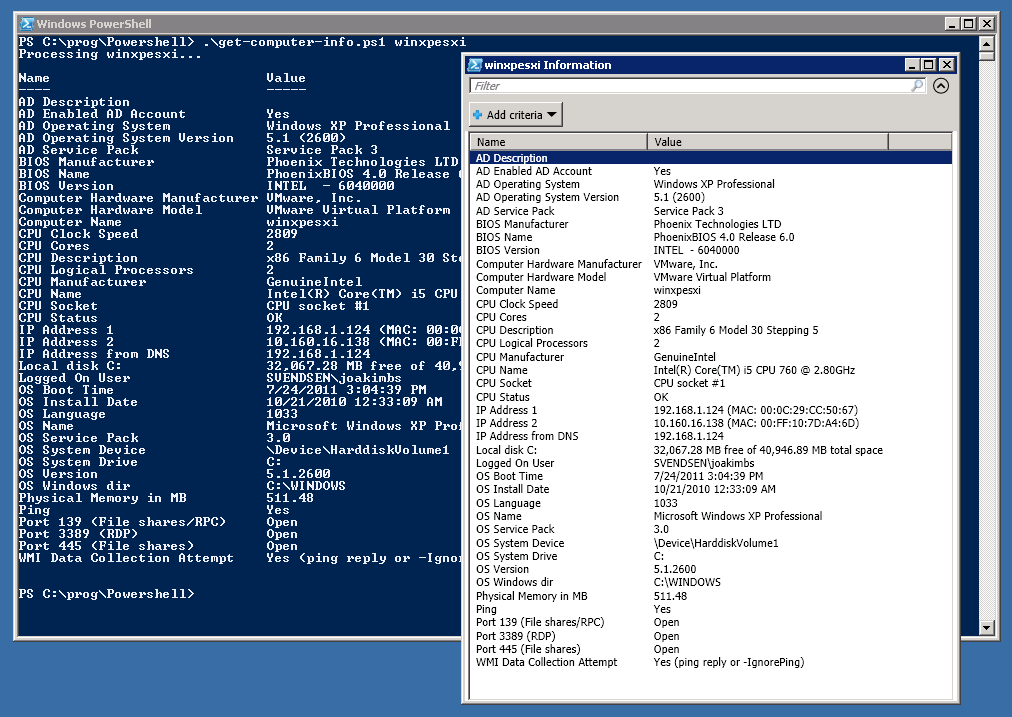
It will retrieve BIOS information about hardware, CPU information, memory/RAM, open ports using sockets (also see my module/script for checking for open TCP ports), AD account status and info, available disk space on local drives, IP address(es) on all network interfaces, MAC address(es), OS version, OS service pack, find the logged on user. Finding the logged on user this way is not 100% reliable in my experience, nor is psloggedon.exe from PSTools (I think this comment is redundant after a certain PsLoggedOn.exe version where it works - I wrote an article about that here years after writing this one). The Win32::NetAdmin or Win32::AdminMisc Perl modules and PsLoggedOn.exe would seemingly sometimes only report users logged on to the console, not via RDP.PS C:\Powershell> .\get-computer-info.ps1 corpcomp1 -IgnorePing
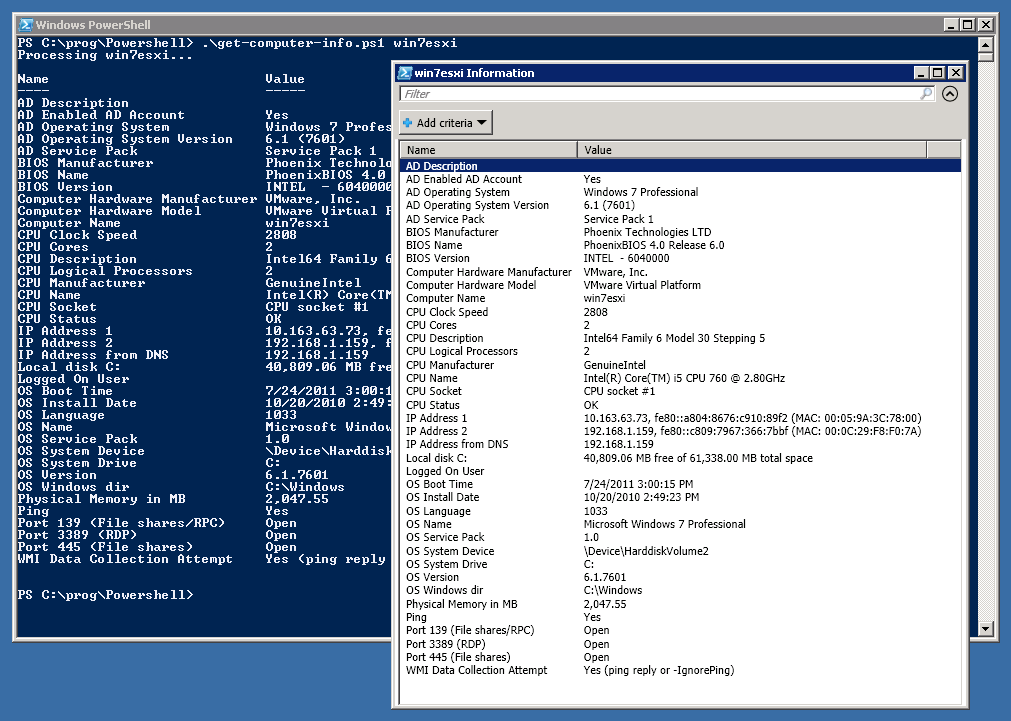
Download Get-Computer-Info.ps1 (right-click and "save as").
param(
    [Parameter(Mandatory=$true)] $TargetComputer,
    [switch] $IgnorePing
     )

# Check that the Quest.ActiveRoles.ADManagement snapin is available
# If not, just print a warning rather than exiting as is usually necessary.
if (!(Get-PSSnapin Quest.ActiveRoles.ADManagement -registered -ErrorAction SilentlyContinue)) {

    'You need the Quest ActiveRoles AD Management Powershell snapin to fully use this script'
    "www.quest.com`n"
    'Please install and register this snapin.'

}

# Add the snapin and don't display an error if it's already added.
# If it's not registered, the warning above will be printed, but
# I changed it from exiting, as I normally have it do, to just continuing,
# because WMI, DNS, etc. might still work.
Add-PSSnapin Quest.ActiveRoles.ADManagement -ErrorAction SilentlyContinue

$private:computer = $targetComputer

'Processing ' + $private:computer + '...'

# Declare main data hash to be populated later
$data = @{}

$data.'Computer Name' = $private:computer

# Try an ICMP ping the only way Powershell knows how...
$private:ping = Test-Connection -quiet -count 1 $private:computer
$data.Ping = $(if ($private:ping) { 'Yes' } else { 'No' })

# Do a DNS lookup with a .NET class method. Suppress error messages.
$ErrorActionPreference = 'SilentlyContinue'
if ( $private:ips = [System.Net.Dns]::GetHostAddresses($private:computer) | foreach { $_.IPAddressToString } ) {

    $data.'IP Address(es) from DNS' = ($private:ips -join ', ')

}

else {

    $data.'IP Address from DNS' = 'Could not resolve'

}
# Make errors visible again
$ErrorActionPreference = 'Continue'

# We'll assume no ping reply means it's dead. Try this anyway if -IgnorePing is specified
if ($private:ping -or $private:ignorePing) {

    $data.'WMI Data Collection Attempt' = 'Yes (ping reply or -IgnorePing)'

    # Get various info from the ComputerSystem WMI class
    if ($private:wmi = Get-WmiObject -Computer $private:computer -Class Win32_ComputerSystem -ErrorAction SilentlyContinue) {

        $data.'Computer Hardware Manufacturer' = $private:wmi.Manufacturer
        $data.'Computer Hardware Model'        = $private:wmi.Model
        $data.'Physical Memory in MB'          = ($private:wmi.TotalPhysicalMemory/1MB).ToString('N')
        $data.'Logged On User'                 = $private:wmi.Username

    }

    $private:wmi = $null

    # Get the free/total disk space from local disks (DriveType 3)
    if ($private:wmi = Get-WmiObject -Computer $private:computer -Class Win32_LogicalDisk -Filter 'DriveType=3' -ErrorAction SilentlyContinue) {

        $private:wmi | Select 'DeviceID', 'Size', 'FreeSpace' | Foreach {

            $data."Local disk $($_.DeviceID)" = ('' + ($_.FreeSpace/1MB).ToString('N') + ' MB free of ' + ($_.Size/1MB).ToString('N') + ' MB total space' )

        }

    }

    $private:wmi = $null

    # Get IP addresses from all local network adapters through WMI
    if ($private:wmi = Get-WmiObject -Computer $private:computer -Class Win32_NetworkAdapterConfiguration -ErrorAction SilentlyContinue) {

        $private:Ips = @{}

        $private:wmi | Where { $_.IPAddress -match '\S+' } | Foreach { $private:Ips.$($_.IPAddress -join ', ') = $_.MACAddress }

        $private:counter = 0
        $private:Ips.GetEnumerator() | Foreach {

            $private:counter++; $data."IP Address $private:counter" = '' + $_.Name + ' (MAC: ' + $_.Value + ')'

        }

    }

    $private:wmi = $null

    # Get CPU information with WMI
    if ($private:wmi = Get-WmiObject -Computer $private:computer -Class Win32_Processor -ErrorAction SilentlyContinue) {

        $private:wmi | Foreach {

            $private:maxClockSpeed     =  $_.MaxClockSpeed
            $private:numberOfCores     += $_.NumberOfCores
            $private:description       =  $_.Description
            $private:numberOfLogProc   += $_.NumberOfLogicalProcessors
            $private:socketDesignation =  $_.SocketDesignation
            $private:status            =  $_.Status
            $private:manufacturer      =  $_.Manufacturer
            $private:name              =  $_.Name

        }

        $data.'CPU Clock Speed'        = $private:maxClockSpeed
        $data.'CPU Cores'              = $private:numberOfCores
        $data.'CPU Description'        = $private:description
        $data.'CPU Logical Processors' = $private:numberOfLogProc
        $data.'CPU Socket'             = $private:socketDesignation
        $data.'CPU Status'             = $private:status
        $data.'CPU Manufacturer'       = $private:manufacturer
        $data.'CPU Name'               = $private:name -replace '\s+', ' '

    }

    $private:wmi = $null

    # Get BIOS info from WMI
    if ($private:wmi = Get-WmiObject -Computer $private:computer -Class Win32_Bios -ErrorAction SilentlyContinue) {

        $data.'BIOS Manufacturer' = $private:wmi.Manufacturer
        $data.'BIOS Name'         = $private:wmi.Name
        $data.'BIOS Version'      = $private:wmi.Version

    }

    $private:wmi = $null

    # Get operating system info from WMI
    if ($private:wmi = Get-WmiObject -Computer $private:computer -Class Win32_OperatingSystem -ErrorAction SilentlyContinue) {

        $data.'OS Boot Time'     = $private:wmi.ConvertToDateTime($private:wmi.LastBootUpTime)
        $data.'OS System Drive'  = $private:wmi.SystemDrive
        $data.'OS System Device' = $private:wmi.SystemDevice
        $data.'OS Language     ' = $private:wmi.OSLanguage
        $data.'OS Version'       = $private:wmi.Version
        $data.'OS Windows dir'   = $private:wmi.WindowsDirectory
        $data.'OS Name'          = $private:wmi.Caption
        $data.'OS Install Date'  = $private:wmi.ConvertToDateTime($private:wmi.InstallDate)
        $data.'OS Service Pack'  = [string]$private:wmi.ServicePackMajorVersion + '.' + $private:wmi.ServicePackMinorVersion

    }

    # Scan for open ports
    $ports = @{
                'File shares/RPC' = '139' ;
                'File shares'     = '445' ;
                'RDP'             = '3389';
                #'Zenworks'        = '1761';
              }

    foreach ($service in $ports.Keys) {

        $private:socket = New-Object Net.Sockets.TcpClient

        # Suppress error messages
        $ErrorActionPreference = 'SilentlyContinue'

        # Try to connect
        $private:socket.Connect($private:computer, $ports.$service)

        # Make error messages visible again
        $ErrorActionPreference = 'Continue'

        if ($private:socket.Connected) {

            $data."Port $($ports.$service) ($service)" = 'Open'
            $private:socket.Close()

        }

        else {

            $data."Port $($ports.$service) ($service)" = 'Closed or filtered'

        }

        $private:socket = $null

    }

}

else {

    $data.'WMI Data Collected' = 'No (no ping reply and -IgnorePing not specified)'

}

# Get data from AD using Quest ActiveRoles Get-QADComputer
$private:computerObject = Get-QADComputer $private:computer -ErrorAction 'SilentlyContinue'
if ($private:computerObject) {

    $data.'AD Operating System'         = $private:computerObject.OSName
    $data.'AD Operating System Version' = $private:computerObject.OSVersion
    $data.'AD Service Pack'             = $private:computerObject.OSServicePack
    $data.'AD Enabled AD Account'       = $( if ($private:computerObject.AccountIsDisabled) { 'No' } else { 'Yes' } )
    $data.'AD Description'              = $private:computerObject.Description

}

else {

    $data.'AD Computer Object Info Collected' = 'No'

}

# Output data
$data.GetEnumerator() | Sort-Object 'Name' | Format-Table -AutoSize
$data.GetEnumerator() | Sort-Object 'Name' | Out-GridView -Title "$private:computer Information"
 Powershell
Windows
All Categories
Powershell
Windows
All Categories
Minimum cookies is the standard setting. This website uses Google Analytics and Google Ads, and these products may set cookies. By continuing to use this website, you accept this.